
Download ScreenCatch – Free, Secure Desktop Screenshot Tool for Windows, Mac, Android & iOS
Why ScreenCatch Stands Out Among Free Screenshot Tools
In today’s digital world, capturing and sharing screen content quickly is essential—whether you're troubleshooting technical issues, creating tutorials, or collaborating remotely. ScreenCatch delivers a streamlined, no-hassle solution for anyone who needs to take a screenshot and share it online in seconds. Unlike many other tools that require complex setups, user accounts, or lengthy installations, ScreenCatch operates as a lightweight, portable application that runs directly from your browser or desktop.
This makes it ideal for users who value speed and simplicity. The software supports multiple platforms, including Windows, Mac, Android, and iOS, ensuring seamless access across devices. One of the standout features is its ability to capture full-screen snapshots with just one click—no need to select specific regions or configure advanced settings.
Once captured, the image is automatically uploaded to the ScreenCatch cloud service, and you receive a direct shareable link instantly. This eliminates the need to manually upload files to external platforms like Imgur or Google Drive. For users concerned about privacy, ScreenCatch offers a password protection option for shared images, allowing you to keep sensitive content secure.
The entire process—from capture to sharing—takes less than 10 seconds, making it one of the fastest screenshot tools available. Whether you're a student, educator, IT professional, or remote worker, ScreenCatch simplifies the workflow and enhances communication efficiency. With no installation required and zero account creation, it’s a perfect choice for quick, on-the-go sharing.
Its minimalistic design ensures that users aren’t overwhelmed by unnecessary features, focusing instead on the core function: capture and share.
Key Features That Make ScreenCatch a Must-Have Tool
ScreenCatch may not come packed with advanced editing tools, but its core functionality is rock-solid and optimized for speed. The primary feature is its one-click full-screen capture, which instantly captures your entire screen without requiring any configuration. This is especially useful when you need to document error messages, system alerts, or full application windows.
After capturing, the built-in basic image cropper allows you to trim unwanted areas—though it lacks advanced tools like text annotations, arrows, or blur effects. Still, for users who prioritize speed over customization, this is more than sufficient. Another major advantage is the instant online upload and sharing.
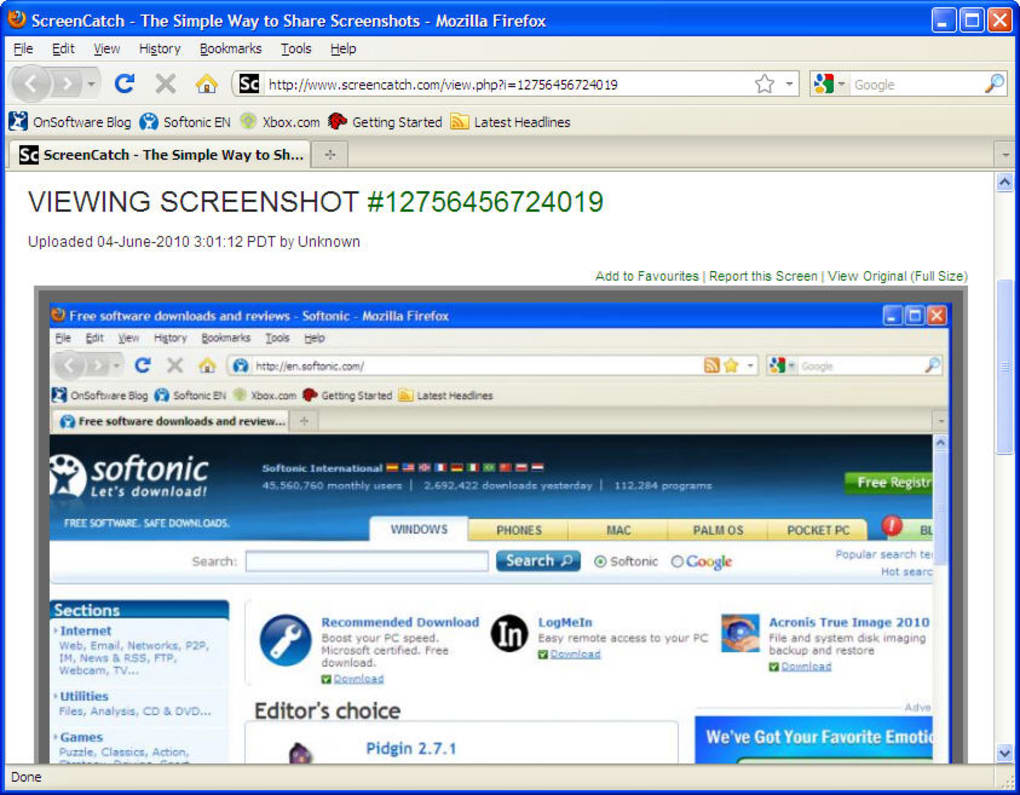
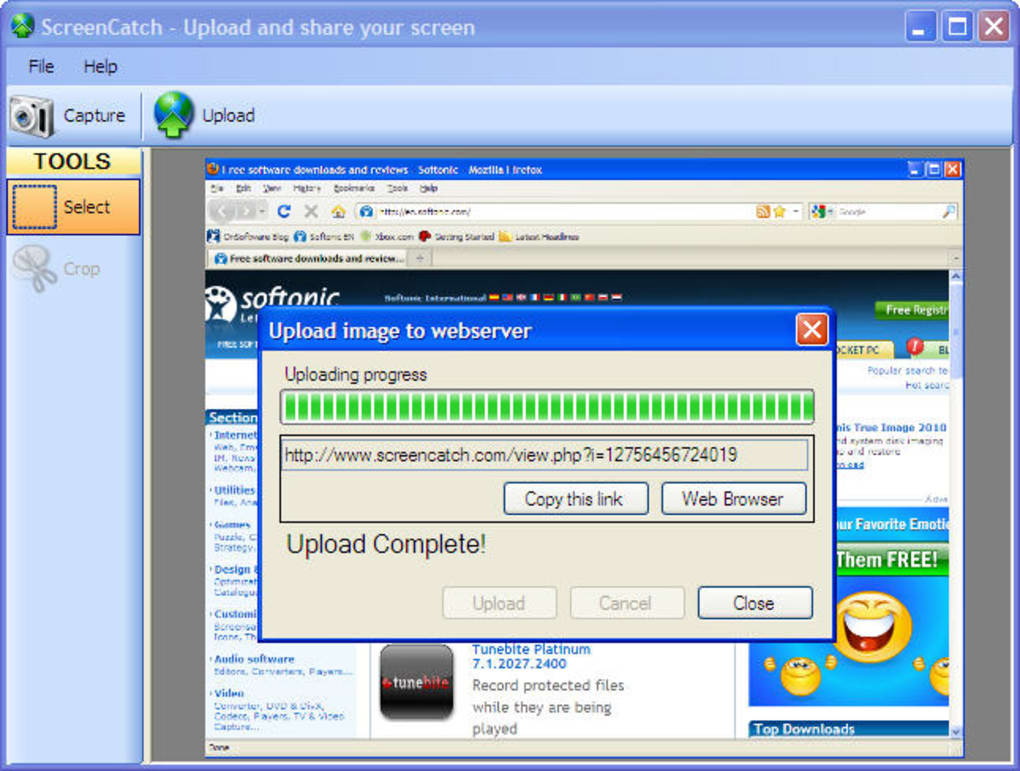
Once the image is captured, clicking the Upload button sends it directly to the ScreenCatch web server, which generates a unique URL. You can then copy and paste this link into emails, messages, or documents—perfect for remote collaboration. The tool also supports password-protected sharing for private content, ensuring that only authorized individuals can view sensitive screenshots.
While there’s no built-in history or local storage, the generated link remains active indefinitely, so you don’t have to worry about losing access. ScreenCatch is compatible with all modern web browsers and runs smoothly on both Windows and Mac systems. For mobile users, the Android and iOS versions offer the same core functionality, allowing you to capture and share screenshots from your smartphone or tablet.
The app is lightweight, consumes minimal memory, and doesn’t slow down your device. It’s also completely free to download and use, with no hidden fees or subscription models. Whether you're sharing a bug report, a proof of payment, or a presentation slide, ScreenCatch delivers a reliable, secure, and fast experience every time.
How to Install and Use ScreenCatch on Your Devices
Using ScreenCatch is incredibly straightforward, making it accessible even for non-technical users. For Windows and Mac: Visit the official ScreenCatch website and download the portable application. There’s no need to run an installer—simply extract the file and launch the app.
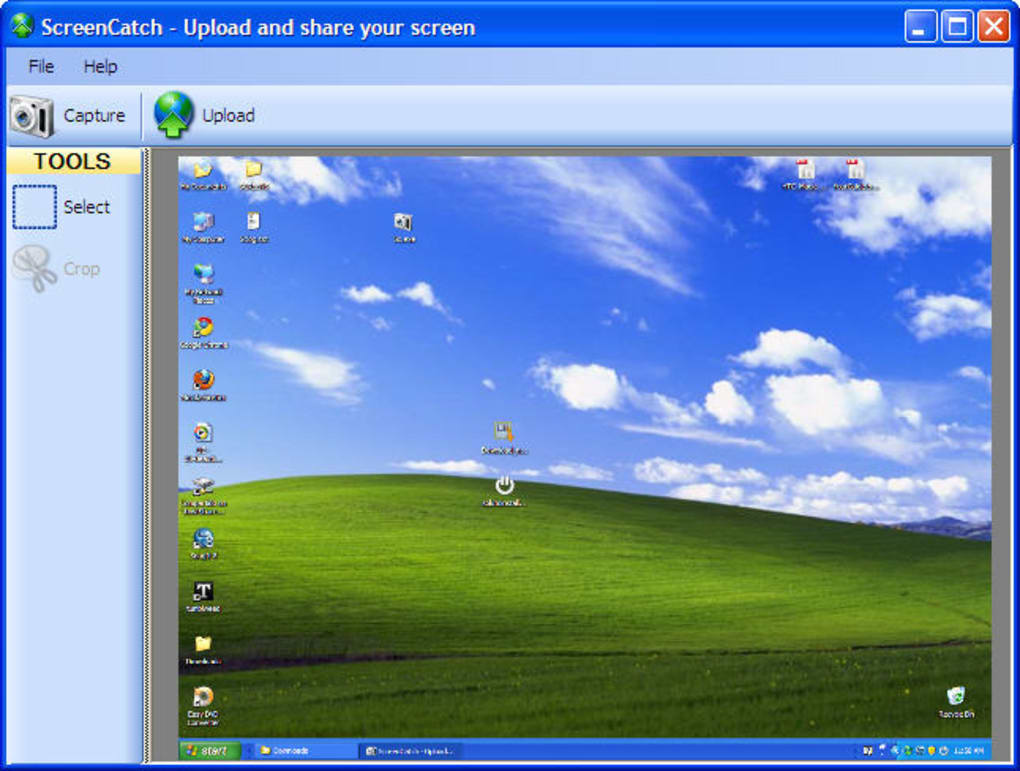
Once opened, you’ll see a single button labeled “Capture.” Click it, and the software instantly captures your full screen. You can then use the built-in cropper to adjust the image if needed. After editing, click “Upload,” and the tool will automatically send your screenshot to the ScreenCatch server.
Within seconds, a shareable link appears. You can copy it and send it via email, messaging apps, or social media. For Android and iOS: Head to the Google Play Store or Apple App Store and search for “ScreenCatch.” Download and install the app.
Upon opening, tap the capture icon to take a screenshot of your current screen. The app will prompt you to crop the image, then upload it to the cloud. The generated link is ready to share immediately.
The entire process takes less than 15 seconds, even on older devices. No registration is required—just open the app and start capturing. If you want to keep your screenshots private, you can enable password protection during upload.
This feature is particularly useful for sharing confidential documents or sensitive information. The app also supports automatic updates, ensuring you always have the latest version with improved performance and security patches. For users who prefer a browser-based solution, ScreenCatch offers a web version that works directly in Chrome, Firefox, Edge, or Safari—no download needed.
This is ideal for temporary use or when you’re on a public computer. Overall, the installation and usage process is intuitive, fast, and hassle-free, making ScreenCatch one of the most user-friendly screenshot tools on the market.
Compatibility, Security, and Performance Overview
ScreenCatch is designed with cross-platform compatibility in mind, supporting Windows 7 and later, macOS 10.12 and above, Android 6.0+, and iOS 11+. This ensures that users across different ecosystems can benefit from the same seamless experience. The software is lightweight, consuming minimal system resources—typically less than 50 MB of RAM during operation—making it suitable for older machines or low-end laptops.
It runs efficiently even on devices with limited processing power. Security is a key focus: all uploads are encrypted in transit using HTTPS, and images are stored securely on ScreenCatch’s servers. The platform does not track user behavior or collect personal data, preserving your privacy.
While the service is free, it does not include long-term storage or download options—once you share the link, you’re responsible for managing access. However, the generated URLs are permanent, so you won’t lose the image over time. For users concerned about data retention, ScreenCatch does not retain metadata such as IP addresses or timestamps unless explicitly required for service operation.
The tool is regularly updated to patch vulnerabilities and improve performance. The development team is responsive to user feedback, and new features are rolled out based on community input. Whether you're using a desktop, laptop, tablet, or smartphone, ScreenCatch maintains consistent performance across devices.
The interface is clean and intuitive, with no ads or pop-ups, ensuring a distraction-free experience. Its portability means you can carry the app on a USB drive and use it on any computer without leaving traces. For businesses and educators, this makes it a safe choice for classroom use or internal documentation.
With no need for installation, no account creation, and no data collection, ScreenCatch stands out as a secure, private, and reliable tool for everyday screenshot needs.
Pros and Cons: Is ScreenCatch Right for You?
- Pros:
- One-click full-screen capture – instant screenshot with no setup.
- No installation required – runs as a portable app or web tool.
- Fast upload and share – get a link in seconds.
- Free to use with no hidden costs.
- Supports Windows, Mac, Android, and iOS.
- Secure uploads with HTTPS encryption.
- Password protection for private sharing.
- Cons:
- Limited to full-screen captures – no region or window selection.
- Basic editing tools – lacks annotations, blur, or drawing features.
- No local image storage – images are only accessible via the shared link.
- Dependent on external server – offline use not possible.
- Link permanence may pose privacy risks if shared publicly.
FAQ: Everything You Need to Know About ScreenCatch
-
Is ScreenCatch free to download and use?
Yes, ScreenCatch is completely free to download and use. There are no subscription fees, hidden charges, or premium features. You can capture and share screenshots online without creating an account.
-
Do I need to create an account to use ScreenCatch?
No, you do not need to create a user account. ScreenCatch allows instant sharing without registration, making it ideal for quick, anonymous use.
-
Can I edit my screenshots after capturing them?
Yes, ScreenCatch includes a basic image cropper to trim your screenshot. However, it does not support advanced editing like adding text, arrows, or blur effects.
-
Is ScreenCatch secure for sharing sensitive information?
Yes, ScreenCatch uses HTTPS encryption for all uploads. You can also password-protect shared images to prevent unauthorized access.
-
Does ScreenCatch work on mobile devices?
Yes, ScreenCatch is available for both Android and iOS devices. The mobile app offers the same core functionality: capture, crop, and share screenshots instantly.
Final Verdict: A Simple Yet Powerful Screenshot Solution
ScreenCatch is a no-nonsense, efficient tool for anyone who needs to capture and share desktop screenshots online. While it lacks advanced editing features and only supports full-screen captures, its speed, simplicity, and cross-platform compatibility make it a top choice for quick sharing. Whether you're a student submitting assignments, a professional reporting bugs, or a remote worker collaborating with teammates, ScreenCatch delivers exactly what it promises: a fast, secure, and free way to share screen content.
Its lack of installation, account creation, and data collection sets it apart from many competitors. If you value efficiency and privacy, ScreenCatch is definitely worth trying. Download ScreenCatch today and experience the fastest way to capture and share your screen—no strings attached.
Pros: Fast, free, secure, no installation, cross-platform.
Cons: No region capture, limited editing, no local storage.







